
How to Set Up a Professional Discord Ticket System with a Web Dashboard (2026 Guide)
As your online community or digital storefront grows, managing customer support requests, bug reports, and purchase inquiries in public channels or staff DMs quickly becomes chaotic. If you want to keep your server organized, protect user privacy, and provide enterprise-level support, implementing a dedicated ticket system is an absolute must.
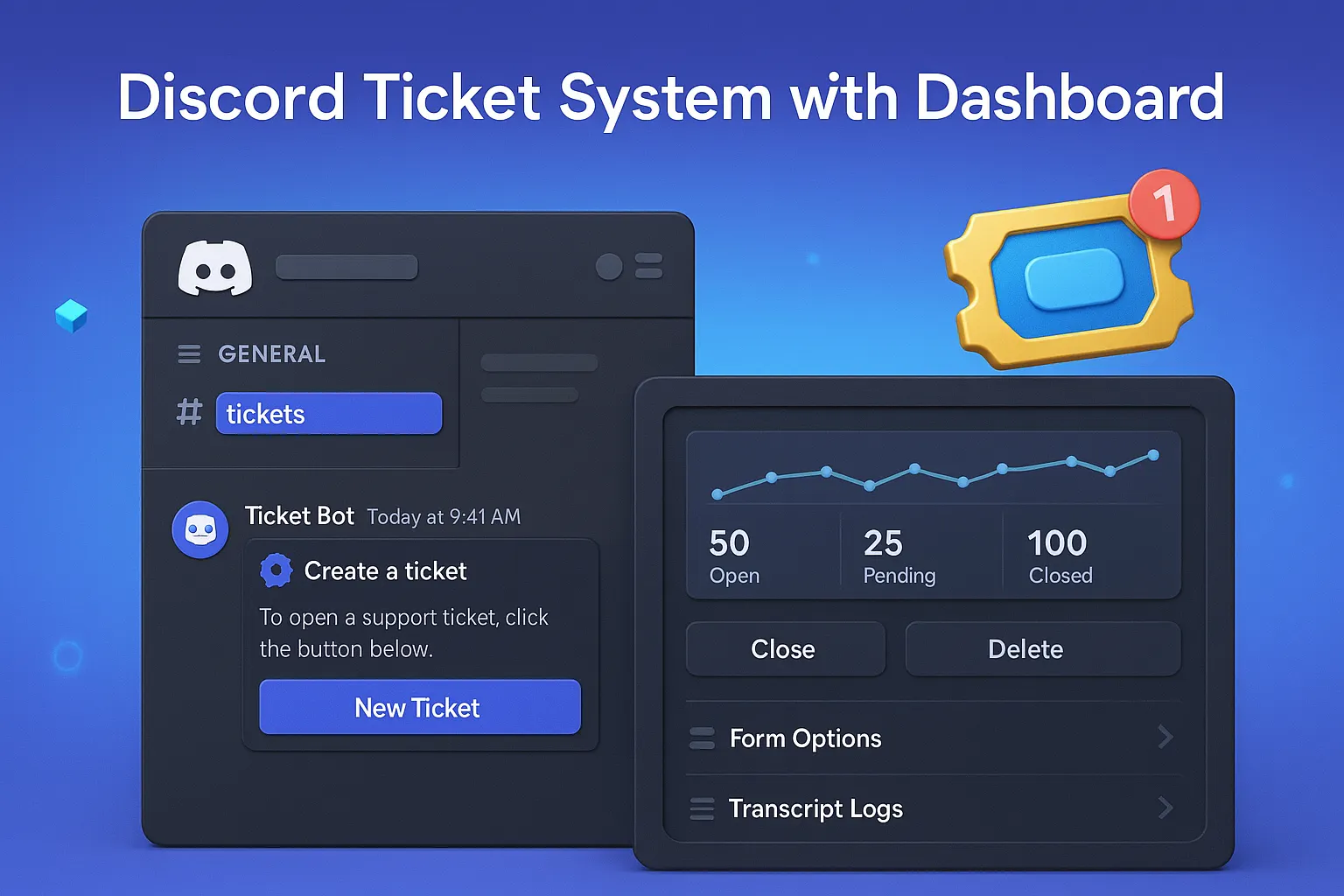
Basic chat-command bots (!ticket) often fall short for growing communities. Modern server owners rely on robust, web-dashboard-backed support systems. This comprehensive guide walks you through the workflow architecture, setup process, staff management best practices, and technical advantages of using a dashboard-driven ticket system in 2026.
Why Public Support Channels and DMs Fail
Relying on public text channels or direct messages for handling support introduces severe operational vulnerabilities:
-
Zero Privacy: Sensitive transaction details, login credentials, payment receipts, or personal information get exposed in public view.
-
Staff Disorganization: Multiple staff members end up replying to the same user in different DMs, leading to conflicting answers and wasted time.
-
No Paper Trail: When a dispute arises regarding a purchase or a ban appeal, searching through endless personal message histories is virtually impossible.
How a Dashboard Ticket System Works Under the Hood
A professional ticket solution bridges the gap between Discord's chat interface and a secure web-based administrative panel. The typical lifecycle of a support ticket follows a strict architectural flow:
[User Clicks Support Button]
             │
             ▼
[Automated Private Channel Created] ──► [Assigned to Staff Category]
                                                    │
                                                    ▼
[Staff Member Claims Ticket via Web Dashboard] ◄────┘
             │
             ▼
[Conversation & Resolution] ──► [Closed & Clean HTML Transcript Generated]
-
The Entry Point: Users interact with a permanent embed message containing interactive buttons (e.g., "General Support", "Bug Report", "Store/Billing").
-
Channel Provisioning: The system instantly creates a private, permission-locked text channel visible only to the user and authorized support staff.
-
Dashboard Management: Staff members handle, assign, and close tickets through a centralized web panel rather than clumsy chat commands.
-
Archiving & Transcripts: Once resolved, the system generates a permanent text transcript for auditing purposes before destroying the temporary channel.
Comparing Chat-Command Bots vs. Dashboard Ticket Systems
| Feature / Metric | Dashboard Ticket System | Legacy Chat-Command Bots |
|---|---|---|
| Interface Quality | ✅ Visual web panel & buttons | ❌ Clunky text commands (!new) |
| Staff Multi-Tasking | ✅ Centralized overview table | ⚠️ Fragmented across discord channels |
| Transcript Storage | ✅ Permanent searchable web database | ⚠️ Basic text file uploads |
| Custom Categories | ✅ Unlimited dynamic dropdowns | ❌ Hardcoded configuration limits |
Step-by-Step Setup & Configuration Guide
Setting up a robust support desk for your community involves a few structural steps:
-
Deploy the System: Acquire the Discord Ticket System with Dashboard directly from the Devlio marketplace.
-
Configure Bot Permissions: Ensure the bot has
Manage Channels,Manage Roles, andView Channelspermissions in your support category. -
Connect the Web Panel: Link your credentials to access the central management dashboard.
-
Design Support Categories: Set up custom button selectors in the dashboard so users can categorize their inquiries (e.g., Billing, Technical Support, General Chat).
-
Set Staff Roles: Assign which Discord roles have permission to view, claim, and close active tickets.
Best Practices for Managing Community Support
-
Define Service Level Agreements (SLAs): Establish clear response time expectations for your staff team (e.g., first response within 2 hours).
-
Use Automated Greeting Messages: Configure the system to send an initial automated prompt asking users to provide relevant screenshots or order IDs immediately.
-
Auto-Archive Inactive Tickets: Set up automated timers to close tickets if a user stops responding after 48 to 72 hours, keeping your active channel list clean.
Frequently Asked Questions (FAQ)
Q: Can normal members see other people's tickets?
A: No. Channel permission overrides are automatically configured so that only the ticket creator, server administrators, and assigned support staff can view the channel.
Q: Where are ticket transcripts stored?
A: Transcripts are securely archived in the web dashboard's database, allowing administrators to review past support performance anytime.
Ready to upgrade your community support workflow? Explore professional community management assets on the Devlio Marketplace.
Discussion & Comments (0)
Leave a Comment
No comments yet. Be the first to share your thoughts!